
A lot of people have been writing many articles about productivity, but I think they only covered the mindset, such as establishing morning routines, using the Pomodoro technique, organizing what's important and what's urgent, etc. Those are good ways to increase our productivity, but they lack how to technically increase our productivity, especially when we are working on our PC/Laptop.
In the previous post, I wrote about my thoughts on work efficiency. In this post, I'm going to share several things that I've been doing as a habit to boost my productivity on my laptop. These things are really simple, but I saw that many people still don't do them even though they're super easy. Some people tend to do what they only know, and they don't look for an improvement to become more efficient.
1. Use the scroll feature
Let's start with a really simple one. Some people might not notice this. Do you know how many hours accumulate if you scroll your screen by clicking the scroll bar? I saw some people were still using it these days. Please use your mouse or touchpad (usually using two fingers) to scroll. If your hand is on your keyboard, use PgUp and PgDn. It's quick and does the job instantly!
Additionally, for horizontal pages or some text inputs, you can scroll to the right by pressing Shift while scrolling using your mouse or touchpad. You can try it by opening https://google.com and copy-pasting this paragraph there. Then try hovering your mouse pointer on top of the text input, pressing shift, and then scrolling.
2. Select words efficiently
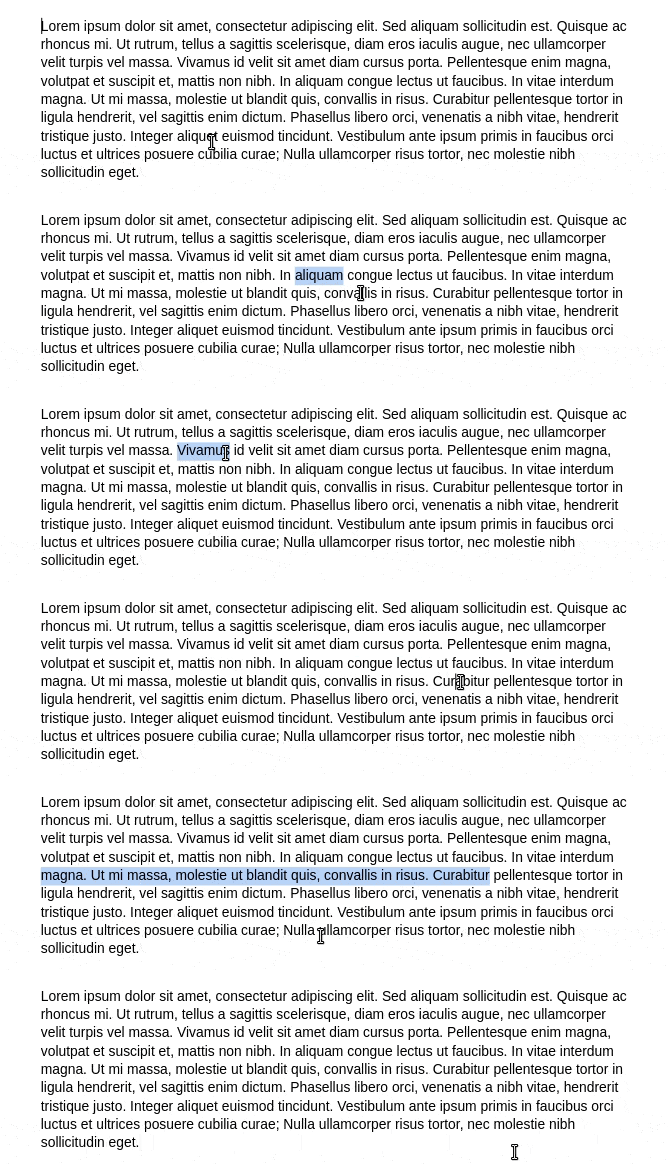
Have you ever wanted to select a word or sentence using your mouse, either to copy or delete the entire word or sentence? Have you ever missed a character or hardly moved the pointer to the end of the word? You'll do it never again if you double-click the word. You also can select the entire line by triple-clicking a word, or you can just double click and then drag the mouse along the entire line.
3. Use shortcuts
When working on my laptop, my left pinky finger mostly stays on top of the ctrl button. It is because I always use shortcuts whenever possible. When I found that I was working on a program/software, even if I never used it before, if I did an action repeatedly, I would search what's the shortcut. So that I can save my time in the future.
For example, one day I always use Ctrl+F to search for anything on my screen. Whether it's in a browser, text editor, spreadsheet, etc. One day, when working on Google Docs, I need to replace several words with other words. At first, as usual, I was using Ctrl+C to copy the selected word, then Ctrl+F to search, then Ctrl+P to paste, then I clicked the three dots menu to open the "replace" form.
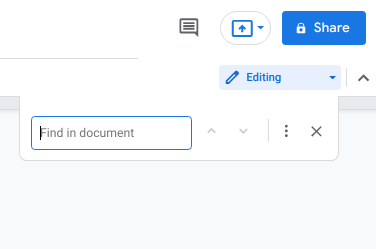
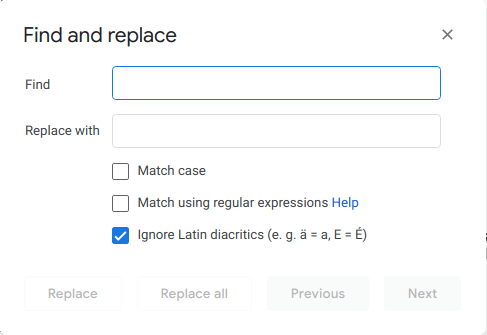
And it's very repetitive! So, I searched for a shortcut for that, and that day I learned that Ctrl+H is a shortcut for the "replace" function in a text editor. And I'm still using it today!
Additional tips: use Ctrl+W, Ctrl+F4, or Alt+F4 to close a program quickly!
4. Navigate faster
This one is a little bit similar to the previous one because it may be called a shortcut too. The difference is sometimes it's not explicitly defined on the menu because it's more like an instinct. 😂
For example, in most apps, when you need to zoom in and zoom out, you can press Ctrl (in browsers, text editors, file explorers, etc) or Alt (in image editors) while scrolling up or down using your mouse.
Another example is one of the very important efficiencies in my life when working on my laptop. I'm a software engineer, so I write a lot of code. A LOT! And I write texts too sometimes when writing documentation. So, I need to navigate through the texts quickly to become efficient. Let's call this...
Text Skipping Technique
The most basic technique is to move our cursor between characters, we can use the arrow keys on our keyboard. The next one is to skip a word, we can use the left and right arrow while pressing Ctrl. Then, to skip to the end of the line, we can press the End key, or press the Home key to skip to the start of the line. To skip to the entire scroll, it's the same as scrolling up or down, you can use PgUp and PgDn. The last one is to skip to the start or end of the text, you can use Ctrl+Home and Ctrl+End.
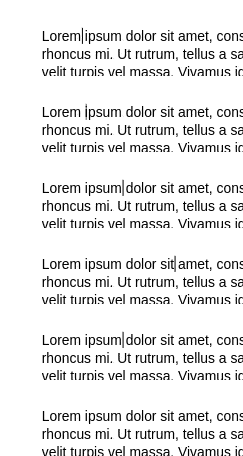
What if you want to select the skipped text? Just add Shift and it will magically select the text!
Additional tips: use Ctrl+PgUp, Ctrl+PgDn, Ctrl+Tab, and Ctrl+Shift+Tab to navigate between tabs in a browser or other programs with tabs.
5. Simplify repeated actions
The final thing that I do is to create an automation for a repetitive action that doesn't have any shortcuts. I think this is a more advanced technique and maybe a little bit hard to absorb by average laptop users because it requires some coding. So, I will create another post about this. Stay tuned for another post!
That's it for now! I hope it will be useful for you in the future and give you a bonus of free time by finishing your work efficiently!